

- After you register for the test, verify your identity as soon as possible using the Entrust IDVaaS app, if applicable to you.
Your At Home Test Day
If you’re taking the TOEFL iBT® Home Edition test, learn what to expect on test day and what to do before and during your testing session to make sure you have the best experience.
On this page, you’ll learn how to:
- Prepare your testing area.
- Check-in.
- Interact with your test proctor (the person who will be overseeing your test session).
- Solve and prevent technical issues and more!
Are you a Test Taker in Mainland China? For policies and procedures specific to Mainland China, visit https://toefl.cn/at-home.
Home Edition Testing Tools
Home Edition Testing Videos
Watch the videos below to help you prepare for testing at home.
Before your test session begins
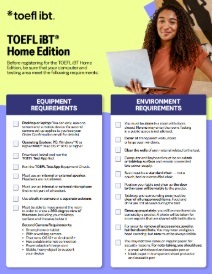
- Make sure your testing area meets all equipment and environment requirements, such as:
- Clear your testing environment of all items. Make sure you have a chair and solid work surface. Close all doors and cover any windows to minimize distractions.
- Whether you’re testing on a desktop or laptop, your computer should be plugged into a power source.
- Close all applications and any unnecessary browser windows or tabs on your computer. This can help prevent bandwidth issues while you test.
- Stop, close or shut down any other devices in your household that may use significant internet bandwidth while you’re testing.
- Gather the materials you'll need for your test session. These are the only materials permitted:
- Passport, government ID, or driver’s license. See ID requirements.
- If you take notes, you must use an erasable marker and write on either a whiteboard or a blank sheet of paper inside a transparent sheet protector.
- A mobile device to use as a second camera when applicable.
- Practice setting up your second camera as shown in the video above, if applicable to you.
- Dress appropriately, with your ears and face visible to the proctor. Avoid wearing any jewelry or other accessories. Face masks are prohibited during check-in or any part of your at home testing experience.
Y a-t-il quelque chose que je puisse faire à l’avance pour éviter les problèmes ?
- Des problèmes de bande passante peuvent empêcher une expérience de test réussie. Avant de commencer votre test, fermez ou éteignez tout autre appareil qui pourrait consommer une bande passante Internet importante.
- Fermez tous les navigateurs et applications non nécessaires pour le test. Cela peut aider à prévenir les problèmes de bande passante pendant les tests.
- Désactivez tout logiciel de partage d’écran ou d’accès à distance avant le test. Vous devrez le garder désactivé pendant tout le test et le régler pour que le logiciel ne s’ouvre pas automatiquement pendant le test.
Pour obtenir des informations supplémentaires et de l’aide au dépannage, consultez la page Exigences en matière d’équipements et d’environnement .
Que se passe-t-il si j’ai un problème juste avant le début de mon examen ?
Votre équipement sera vérifié à nouveau juste avant le test. Le surveillant vous informera s’il y a des problèmes, et vous aurez l’occasion de les résoudre avant le début du test.
Si j’ai un problème technique, mon heure de début sera-t-elle prolongée ?
Votre équipement sera vérifié par le surveillant avant que vous ne commenciez le test. Le minuteur de votre test ne commencera qu’après la vérification de votre équipement et le début de l’examen.
Que se passe-t-il si j’ai un problème technique pendant mon test ?
Si vous avez un problème technique pendant votre examen, parlez et faites signe pour attirer l’attention du surveillant. Si vous avez toujours accès à Internet mais que vous êtes déconnecté du test, prévenez le surveillant via la fonction de chat.
Et si je perds Internet pendant le test ?
Si vous perdez momentanément votre connexion internet, vous serez automatiquement reconnecté au surveillant lorsque votre connexion sera rétablie. Si votre examen peut être rouvert, votre surveillant le fera pour vous.
Si vous ne pouvez pas vous reconnecter à votre examen ou au surveillant, relancez le processus d’enregistrement.
Que se passe-t-il si la seconde caméra se déconnecte pendant le test ?
- Lors de l’enregistrement : Vous serez invité à rescanner le code QR via votre appareil mobile.
Pendant le test : Le surveillant interrompra temporairement votre examen et vous donnera des instructions pour reconnecter votre appareil mobile.
During your test session
After you select Start Test from “Your TOEFL Order Confirmation” email or from the My TOEFL Home dashboard, the TOEFL Test App will launch automatically. Then, here’s what you’ll do:
- Enter a virtual waiting room where you will see your test details and start checking in.
- Connect your second camera, if applicable.
Complete a proctor-assisted identity verification process.
Scan your room for the proctor.
Immediately before beginning your test, you’ll walk through one more equipment check with the proctor, who will attempt to assist in troubleshooting any issues.
To ensure your test day goes well, follow the procedures listed in the Bulletin, including the important rules below. If you don’t follow these rules, your test scores can be canceled, and your registration fee will not be refunded.
- Don't communicate with anyone other than the proctor.
- Don't use any unauthorized materials, including personal recording devices, unauthorized mobile devices, smartwatches, prewritten notes or textbooks at any time during the test.
- Certain behaviors will invalidate your test and can result in score cancelation. Avoid the following behaviors:
- Talking out loud to yourself.
- Looking away from the screen.
- Moving out of view of the webcam or second camera.
- Taking a break.
- Disable any screen-sharing or remote-access software (such as Zoom®, Skype®, TeamViewer®, Microsoft Teams®, Anydesk®, Apple Remote Desktop™, Grammarly® and Spell Check) prior to the test. These must remain disabled throughout the test. Make sure that the software won’t open automatically during the test.
- During the TOEFL test, you will see instructions about headset checks. Ignore these instructions, since headsets are not used or allowed when testing at home.
- ETS is monitoring reuse of devices and testing locations for unauthorized purposes. Frequent, inappropriate reuse of shared testing devices and common testing locations may result in score delay and/or score cancellation and could impact your eligibility to take future ETS tests.
- Submit the test, review your results if they are made available to you, and then close the TOEFL Test App.
- At the end of the test session, the proctor will ask you to erase the whiteboard or transparent sleeve and hold it up to the camera, showing the front and back.
- Once disconnected from the proctor, you may be asked to participate in a brief survey.
- The proctor will be available throughout your test via webcam and chat.
- If you need to contact the proctor during your test, speak to get their attention and/or select the chat icon to open the chat box. It may take a moment for the proctor to reply.
- If the proctor is attempting to chat with you, there will be an audio signal from the chat function.
- Make sure you can always be seen on camera.
At the end of the test, your Reading and Listening sections are scored instantly. These unofficial scores can give you an idea of how you did on the test. You can then choose to report or cancel your scores. See the Bulletin for details on what to consider before canceling.
After your test session
At the end of the test, the date that you can expect to receive your official scores will be displayed. It will also be shown in My TOEFL Home.